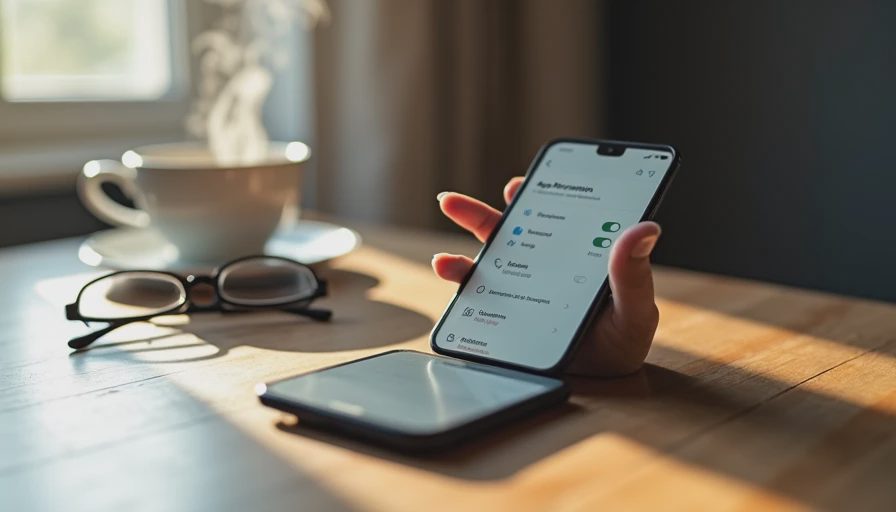
A few months ago I sat down with my phone and opened the permissions list for the apps I use most. The screen filled with toggles I had granted years earlier and never looked at again: location, contacts, microphone, camera, photos, tracking. Some made obvious sense. Others had no clear reason to still be on.
Most of us treat app permissions like a one-time setup. We tap “Allow” during installation because the app asks, then move on. The permissions stay until something forces a review—usually a news story or a sudden sense that the phone knows more than it should.
This article is the practical middle ground. It is not a demand to lock everything down. It is a short list of which permissions are worth a second look and which ones can safely wait.
Why Permissions Accumulate Quietly
Apps ask for access because certain features require it. A maps app needs location. A video call app needs the microphone and camera. A photo editor needs the photo library. The problem is not the initial request. The problem is that the permission often remains after the feature is no longer used, or was never used in the first place.
Over time the list grows. Each new app adds its own set. The result is a phone that can, in theory, collect more information than most people intend.
The difference between useful and excessive
A permission is useful when the app needs it to perform a function you actually want. It becomes excessive when the access continues long after that function is finished, or when the same capability could work with a more limited setting (for example, “While Using the App” instead of “Always”).
Minimum Effort: The Twenty-Minute Permissions Pass
You do not need to audit every app on the phone. Focus on the ones that can collect the most sensitive data and that you open regularly.
Open your phone’s main privacy or permissions settings.
On iPhone this is Settings → Privacy & Security. On most Android phones it is Settings → Privacy or Security & Privacy.Review these five categories first:
Location
Microphone
Camera
Photos / Media
Contacts
For each category, look at the apps that have access.
Ask one question: “Have I used the feature that needs this permission in the last month?” If the answer is no, switch the permission off or set it to “While Using the App” / “Ask Every Time.”Leave the rest alone for now.
Notifications, Bluetooth, and local network access can wait. They are lower risk for most people.
That is the entire minimum-effort review. Most people finish it in less time than a coffee break.
What “While Using the App” actually buys you
This setting is the single most useful middle ground. The app gets the permission only when it is open and on screen. It cannot collect data in the background. For location, camera, and microphone, it removes most of the quiet collection while still letting the app work when you need it.
If You Want to Go Further
Once the high-impact permissions are cleaned up, three additional steps tighten the rest without turning the phone into a project:
Check the “Tracking” or “Allow tracking” section and disable it for apps that do not need to follow you across other companies’ services.
Review which apps have access to your full photo library versus selected photos only. Many apps work fine with limited access.
Once or twice a year, repeat the five-category review. New apps appear; old permissions linger. A short recurring check keeps the list from growing again.
None of these steps require third-party tools. They use the controls already built into the phone.
A note on maps, weather, and ride-share apps
These apps often need location while they are open. Setting them to “While Using the App” is almost always enough. “Always” is rarely required for ordinary use and is the setting most worth changing.
What I Changed on My Own Phone
After the first full review I left location on for maps, weather, and the one photo app I use for geotagged personal albums. Everything else that had location access lost it or was limited to “While Using.” Microphone and camera followed the same rule: only the apps that actively need them keep access.
The phone still works exactly as before. The difference is that far fewer apps can collect data when I am not looking at them.

The Next Thing
Open the location permission list on your phone right now. Scroll through the apps that have access. Change any that you have not used in the last month to “While Using the App” or turn them off. That single category review removes the most common source of quiet background data collection.
You don’t have to do everything. Just do the next thing.

No notes yet — be the first to inscribe one.