A few years ago, I nearly sent a photograph of an identity document to the wrong email address. The message was recoverable, but the mistake made one thing clear: how to encrypt email is worth understanding before a sensitive message is already on its way. You do not need a security degree or a complicated home server. You need to know what protection your email service already provides, when it is insufficient, and which practical upgrade fits the message.
What email encryption actually protects
Email encryption turns readable message content into scrambled data that only an intended system or recipient can unlock. It can protect the message while it travels between servers, while it sits in a mailbox, or both. Those are separate protections, and confusing them is where many explanations go wrong.
Most major services, including Gmail, Outlook.com, and Yahoo Mail, use transport encryption called TLS when messages move between compatible mail servers. TLS is useful because it helps prevent someone on the same coffee-shop Wi-Fi network from casually reading traffic. It does not necessarily stop the email provider from accessing stored messages, and it does not guarantee that every server involved supports the same protection.
End-to-end encryption is stronger for message privacy. In that arrangement, your device encrypts the content before sending it, and only the recipient's device has the key needed to read it. The email provider generally cannot inspect the message itself. This is the central idea behind how to encrypt email with tools based on OpenPGP or S/MIME.
The tradeoff is convenience. Both sides usually need compatible software, certificates, or keys. Encrypted mail is not a magic cloak for the subject line, sender, recipient, time sent, or the fact that communication happened. Those details can remain visible as metadata.
Minimum effort: choose the right level of privacy
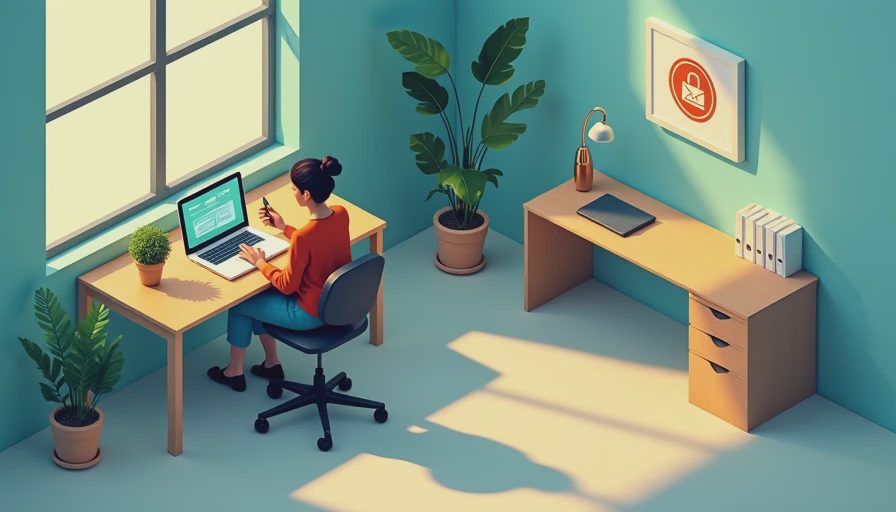
For ordinary conversations, TLS provided by a reputable email service is usually a reasonable baseline. Use a strong, unique password and multifactor authentication, because an attacker who enters your account can often read messages regardless of how securely they traveled. Account security is part of email privacy, not a separate concern.
When a message contains a Social Security number, tax form, medical document, passport scan, password, or private legal information, avoid treating regular email as a secure filing cabinet. The minimum-effort option is to use a secure file-sharing link with an expiration date and a separate password channel. For example, send the link by email and the password through a phone call or text. This can be simpler and safer than trying to teach a relative to manage encryption keys.
If you are learning how to encrypt email for occasional sensitive exchanges, consider whether the recipient can actually open the protected message. A perfectly encrypted message that the other person cannot access often leads to an insecure workaround, such as forwarding the document through an unprotected account.
How to encrypt email with built-in features
Some services offer a confidential or protected message mode. Gmail's Confidential Mode can restrict forwarding, copying, downloading, and printing through controls in the message interface. It can also set an expiration date and require a passcode. These features reduce casual sharing, but they are not the same as end-to-end encryption. The service still manages access and may be able to process message content.
Microsoft Outlook users in some Microsoft 365 environments can use message encryption options such as permissions or encrypted mail policies. Availability depends on the account type and subscription. A personal Outlook.com account and a business Microsoft 365 account may show different controls, so do not assume that a button appearing in one account exists in another.
The practical lesson from how to encrypt email with built-in tools is to read the description beside the setting. Look for who controls the key, whether the recipient needs an account, whether forwarding is technically blocked, and whether attachments receive the same protection. A label such as “secure” describes an experience, not necessarily a specific technical standard.
The advanced path: OpenPGP and S/MIME
OpenPGP uses public and private keys. You share your public key with others, while your private key stays under your control. A sender encrypts a message with the recipient's public key, and the recipient decrypts it with a private key. Digital signatures can also help prove that a message came from the expected sender and was not altered.
S/MIME follows a similar public-key model but commonly uses certificates issued for an email address. It is often easier to encounter in managed workplace environments, especially where an organization controls accounts and devices. OpenPGP can work across providers, but setup and key management are more demanding.
If you want to go further, start with a noncritical test account or a harmless message. Install a reputable, actively maintained email client or browser extension only after checking its publisher and documentation. Generate a key, save the recovery information offline, and practice sending a message to yourself. Never email your private key or store its only copy on the same account you are trying to protect.
This is also where many people discover the real cost of how to encrypt email: coordination. Your spouse, accountant, doctor, or client may need compatible software and a way to verify keys. That work can be worthwhile for recurring sensitive communication, but it is excessive for a grocery list.
Protect attachments and account access
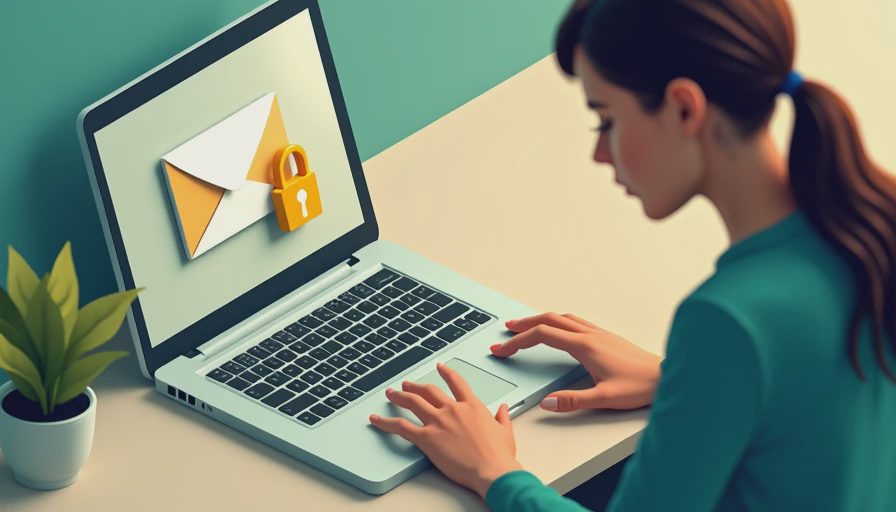
Encrypting the message does not automatically solve every attachment problem. A PDF can contain hidden metadata, comments, revision history, or extra pages. Before sending a scan, remove unnecessary details and check that you selected the intended file. For photographs, remember that location metadata can reveal where an image was taken.
A password-protected ZIP file can add a layer of protection, but the password should not travel in the same email. Use a long, unique passphrase and share it through a different channel. Some recipients struggle to open encrypted archives on phones, so test the process before sending an urgent document.
Your mailbox also needs basic defenses. Turn on multifactor authentication, review recent sign-ins, remove old forwarding rules, and check recovery addresses. An attacker who creates a hidden forwarding rule can receive future messages even after you change the password. These steps often provide more practical protection than advanced encryption alone.
A simple decision checklist
Ask five questions before sending a sensitive email. What harm would follow if the message were exposed? Does the recipient need to reply with equally sensitive information? Can a secure portal or expiring file link handle the exchange? Do both parties already have compatible encryption tools? What happens if you lose access to the key or account?
For low-risk content, use a reputable provider, TLS, a unique password, and multifactor authentication. For a single confidential document, use a secure portal or encrypted file with the password sent separately. For ongoing professional or personal exchanges, learn how to encrypt email with OpenPGP or S/MIME and document the recovery process. Do not improvise key storage after something goes wrong.
You also should not assume a paid privacy service is necessary. Many people can solve their real problem with account alerts, a password manager, and a secure sharing feature they already have. Pay for a specialized solution only when the convenience, support, or recurring need justifies it.
The reasonable next step
The best answer to how to encrypt email depends on the consequence of exposure, not on how technical the solution sounds. Start by turning on multifactor authentication and reviewing account forwarding rules. For your next sensitive document, use a secure link or built-in protected-message feature and send access details separately. If you regularly handle confidential information, spend an afternoon testing OpenPGP or S/MIME with a trusted recipient.
You do not have to do everything. Just do the next thing. A calm, workable privacy habit beats an impressive system that you abandon after one frustrating setup session.
No notes yet — be the first to inscribe one.